Last Updated On: February 12, 2020
True/False questions may be the simplest type of eLearning questions. They are widely used in testing and evaluating learning performance. Now let’s learn how to insert True/False questions in ActivePresenter.
Overview of True/False Question
True/False question is a factual-based question. It is a statement which is either correct or incorrect, therefore, it gives learners only two answer options: true or false. This type of elearning question comes in handy when you want to test learner’s knowledge about a specific idea or concept in a very short of time.
A True/ False Question created in ActivePresenter
There are some variations of the True/False format. That is, you can change the True/False answers to Yes/No, Correct/Incorrect, or Right/Wrong.
Create a True/False Question
This section will show you full details about how to create a True/False question in ActivePresenter through 6 stages: Insert a True/False Question, Set Correct Answer, Change Answer Layout, Set Scores and Reporting, Add Events – Actions, and Add Feedback Messages. Let’s start right now!Insert a True/False Question
To insert a True/False question, do either of the following:- In the Interactions tab > True/False
- In the Home tab > Interactions > True/False
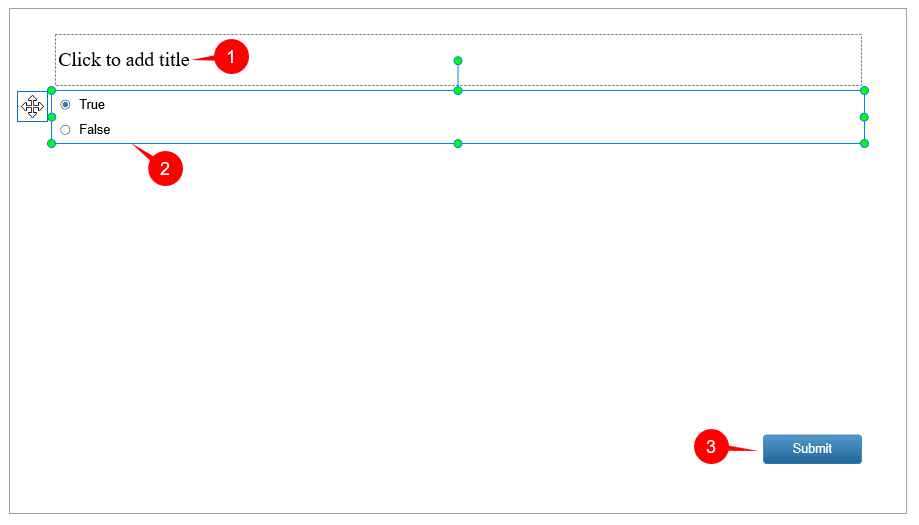
- Each answer option comes with a radio button. Freely format this button if you like by selecting the answer area then accessing the Format tab. See Working with Check Boxes and Radio Buttons for more details.
- You can neither remove nor add more answer options (a True/False question always has two answer options as discussed in the above section).
- You’re free to create variations for True/ False answers. This means two answer options are not necessarily True – False. They could be Yes – No, Correct – Incorrect, or Right – Wrong. All you need to do is to edit the text.
- To change the tab order value, first select the question. Then, access the Properties pane > Interactivity > General. For next steps, see Using Tab Order.
Set Correct Answer
Double-click the radio button that corresponds to the correct answer option in order to specify the correct answer for that question.Change Answer Layout
ActivePresenter 7 offers two layouts for answers, namely None and Grid. Select the former to freely change the size and position of any answer option. Otherwise, go with the latter to arrange answer options vertically or horizontally. Do as follows: Step 1: Select the answer area Step 2: In the Properties pane > Size & Properties > Group Layout. Click the Mode drop-down button and select the layout mode that you want. Then, you can customize its properties.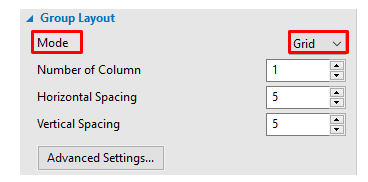
Set Scores and Reporting
To set scores and reporting for a True/False question, select the answer area of the question. Then, go to the Properties pane > Interactivity > Score & Reporting.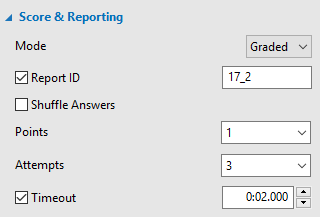
Add Events and Actions
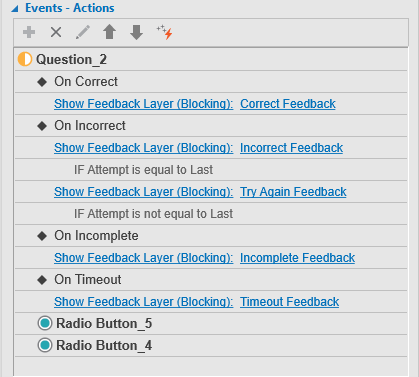
ActivePresenter offers default events and actions for True/False questions. Generally, a True/False question has four default events for the Graded mode (On Correct, On Incorrect, On Incomplete, and On Timeout) and three for the Survey mode (On Complete, On Incomplete, and On Timeout). If you’ve selected the Graded mode, here what you’ll see: